
Whether you would like to try Maplat yourself or integrate it into a system currently under development, we offer guidance on the most suitable implementation approach.
For General Users
If you are able to prepare your own web server, use GitHub, and edit JSON files, please refer to the section for IT professionals and web developers below.
Implementation Flow
- Prepare the historical map or illustrated map you would like to use.
Please ensure that you have the appropriate rights to use the source material. - Choose a plan from the table below according to the number of maps and your intended use.
We are also happy to answer questions and provide advice on plan selection. - Contact us through the Contact Form.
We will reply with an estimate. - If the estimate is acceptable, please scan the map and send it to us in JPG or PNG format.
Higher-resolution images are strongly recommended whenever possible.
If scanning is difficult, please feel free to contact us for assistance. - We will provide you with the URL of your Maplat-converted map.
You can then view it on a smartphone or PC
Plans
| Plan | Light | Standard |
| Number of maps | 1 | 2~5 |
| Number of pins | 0 | 1~20 |
| Server included | ☑️ | ☑️ |
For IT Service Providers and Web Developers
Maplat is open-source software (OSS), and both the library and the editor are publicly available.
You are free to use them in accordance with the applicable OSS license terms.
Implementation Flow
- Prepare the historical map or illustrated map you would like to use.
Please ensure that you have the appropriate rights to use the source material. - Scan the map and save it in JPG or PNG format.
Higher-resolution images are strongly recommended whenever possible. - Install Maplat Editor, then edit and export the data.
- Edit the configuration files as needed.
- Upload the complete set of files to your web server and verify the result in your browser.
Maplat Editor
Please download and install MaplatEditor from GitHub.
https://github.com/code4history/MaplatEditor
Metadata Editing
Control Point Editing (Mapping)
Map corresponding locations between the illustrated map and the modern map.
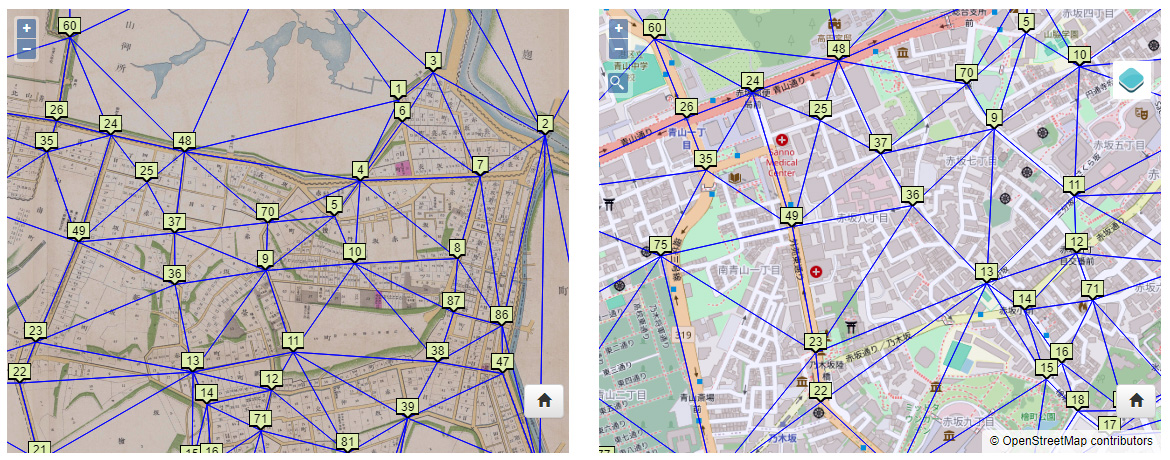
Specify corresponding points on both maps
Data Export
Once mapping is complete, export the data from:
Dataset I/O > Export Map Data
Additional Settings
Option settings
Pin placement
Switching between multiple maps
Reference Articles
Articles about Maplat are also available on Qiita.
Paid Support
If you would like paid support, please contact us here.
Contact Us
Integration and New Feature Development
For inquiries regarding system integration or additional feature development, please contact us here.
Contact Us